
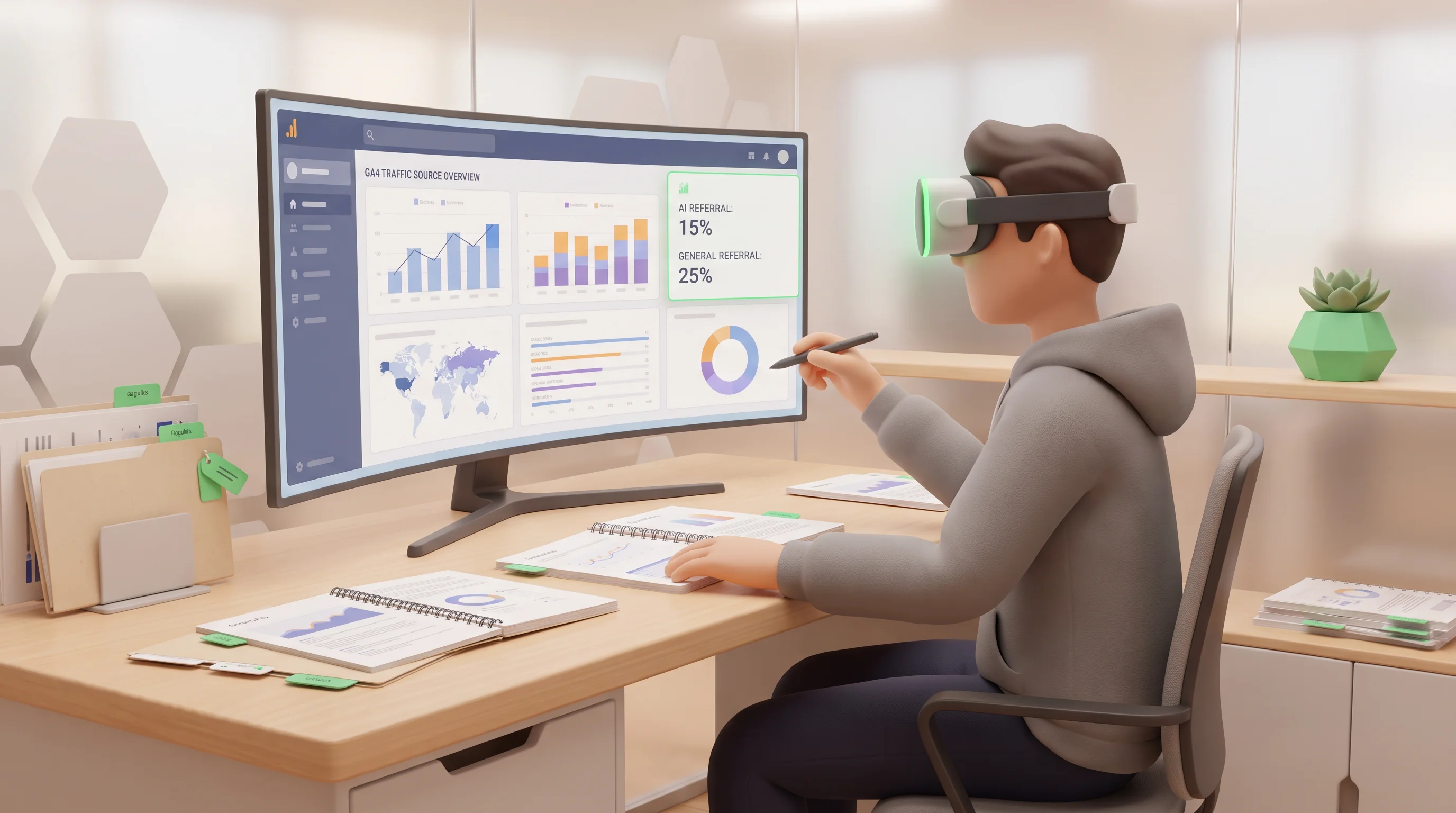
Visitors arriving on your site from platforms like ChatGPT or Claude get dumped into your generic referral channel in Google Analytics 4 alongside standard websites. Knowing **how to create an AI referral traffic report in GA4** is the only way to isolate these users and measure your conversational search footprint. You do this by setting up a custom channel group positioned above your default rules, feeding clean data into a custom exploration report.
Quick answer: To build an AI referral report, create a custom channel group with rules targeting known AI source domains and position it above the default Referral channel. Pull this dimension into a blank GA4 exploration alongside session and conversion metrics.
What Counts as AI Referral Traffic in GA4
AI referral traffic represents visitors who read an answer inside an AI assistant, clicked a cited link, and landed on your website.
GA4 groups this traffic into the generic Referral default channel group. This makes identifying which sessions come from AI engines a manual process without a dedicated reporting structure.
AI referral visitors vs. AI crawlers
You must distinguish active prospective customers from background technology. AI referral traffic consists of real users clicking through from twelve major AI engines: ChatGPT, Gemini, Claude, Perplexity, Copilot, Grok, Meta AI, DeepSeek, Mistral, Manus, Poe, and Kimi. This differs from AI search indexers, which scrape content to train language models without generating human sessions or GA4 events.
Why the Default GA4 Setup Hides This Traffic
GA4 categorizes incoming traffic using a strict evaluation process, assigning a session to the first matching rule. Because AI engines send referrers that look like standard websites, GA4 lumps them into the default Referral channel. If you do not define an AI channel before the generic referral rule, the traffic disappears into your general referral data.
Fixing this is a matter of rule order. You must position your custom AI traffic channel above the standard Referral rule to capture these visitors before they get misclassified.
Step 1: Build a Custom Channel Group for AI Referral Traffic
Isolate this data by building a custom channel group rather than editing the read-only Default Channel Group. Creating a separate group preserves your standard reporting setup. This process requires Administrator or Editor access.
- Navigate to your GA4 Admin panel, click Data Display, and select Channel Groups.
- Copy the default channel group as your baseline.
- Create a new channel rule and name it "AI Referral".
- Define the rule conditions using the "Source" dimension, listing known AI assistant domains.
- Reorder the channels by dragging your "AI Referral" rule above the standard Referral rule.
- Save your new channel group.
GA4 evaluates channel conditions sequentially. If the standard Referral rule remains above your new AI rule, the traffic gets bucketed into the generic category first.
Step 2: Turn the Channel Group Into an Actual Report
Standard GA4 reports do not display custom channel groups granularly. Analyze your AI traffic by building a custom report using the Explorations tool.
Adding the right dimensions and metrics
- Create a blank Exploration by navigating to "Explore" and selecting "Blank."
- Import your custom channel group as a dimension, alongside "Session source".
- Select "Sessions," "Engaged sessions," and "Conversions" as your core metrics.
- Drag your custom channel group dimension into the Rows section.
- Add the Session source dimension as a nested row to segment traffic by specific engines.
- Apply your selected metrics to the Values section.
Saving the report for repeat use
Set your comparison date range in the top-right corner to analyze month-over-month shifts. GA4 explorations save automatically, so you will not need to rebuild this layout.
This workspace functions as your dedicated dashboard for evaluating user interest from conversational engines.
What to Do Once the Report Shows Your AI Referral Numbers
Your GA4 exploration report highlights which conversational engines and landing pages attract active interest. Reviewing these dimensions reveals where your content aligns with AI user queries.
Specific landing pages pulling visits from ChatGPT or Claude are prime candidates for further optimization.
Seeing zero or low numbers in your custom AI channel often means your site is not yet receiving organic visits from these platforms. Traditional search engine visibility does not automatically translate to AI citations.
Establish this reporting baseline to track campaigns designed to lift your AI visibility. Once your custom exploration report is live, you can verify your tracking works while driving qualified users to your key landing pages.
You can monitor these sessions directly in your GA4 reports in real time.
Why the Report Might Still Undercount AI Traffic
Even with a perfectly configured custom channel group, your GA4 reports may show lower numbers than your actual AI-driven visits. The primary reason is the loss of referrer data.
When a user transitions from an AI app or a secure chat interface to your website, referral headers are frequently stripped away, forcing GA4 to categorize the session as Direct traffic.
This loss of referrer data is the most common reason your AI referral report undercounts your real traffic volume.
To get a more complete picture, review your Direct traffic periodically to catch sessions the channel group rules missed. Look for sudden spikes in Direct visits to specific landing pages that align with your AI visibility efforts.
Deploy a dedicated custom channel group today to stop guessing how AI search engines impact your traffic. Secure chat applications will still occasionally strip referrer data, causing a portion of these sessions to appear as direct traffic.